
Overview
Taskify makes it simple for employees to request time off and for managers/approvers to review and approve those requests. This article provides a step-by-step guide to submitting and managing leave requests within the system.
1. Submitting a Leave Request (Employee Workflow)
Any employee can submit a leave request directly from their Taskify dashboard.
Steps to Submit a Leave Request:
Go to the Leave Requests section from the menu.
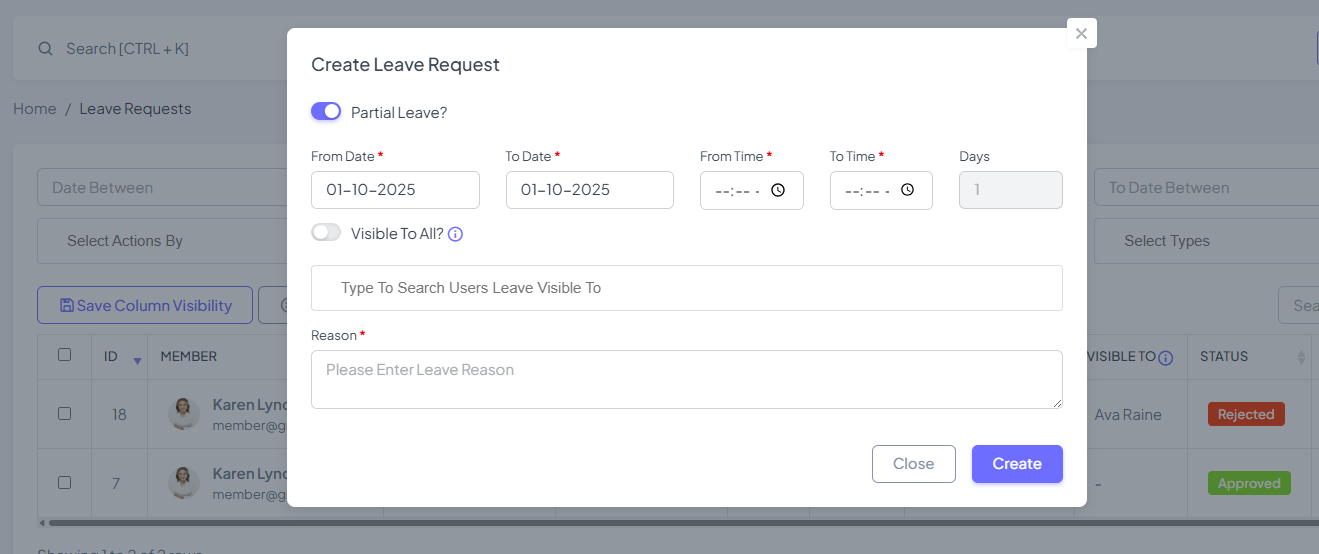
Click New Leave Request.
Select the Leave Type:
Full Day – If you’ll be absent for the entire day.
Partial Day – If you only need a few hours off.
Select the Date(s) of your leave.
For partial day, also specify the time duration.
(Optional) Add a Note/Reason for better clarity (e.g., “Doctor’s appointment”).
Click Submit Request.
Once submitted:
The request is automatically sent to the assigned Leave Approver(s).
You will receive a notification once the approver takes action.
2. Reviewing and Approving a Leave Request (Approver Workflow)
Leave requests can be reviewed not just by Admins, but also by designated Leave Approvers (such as team leads or HR managers).
Steps to Review a Leave Request:
Go to the Leave Requests section.
View the list of pending requests.
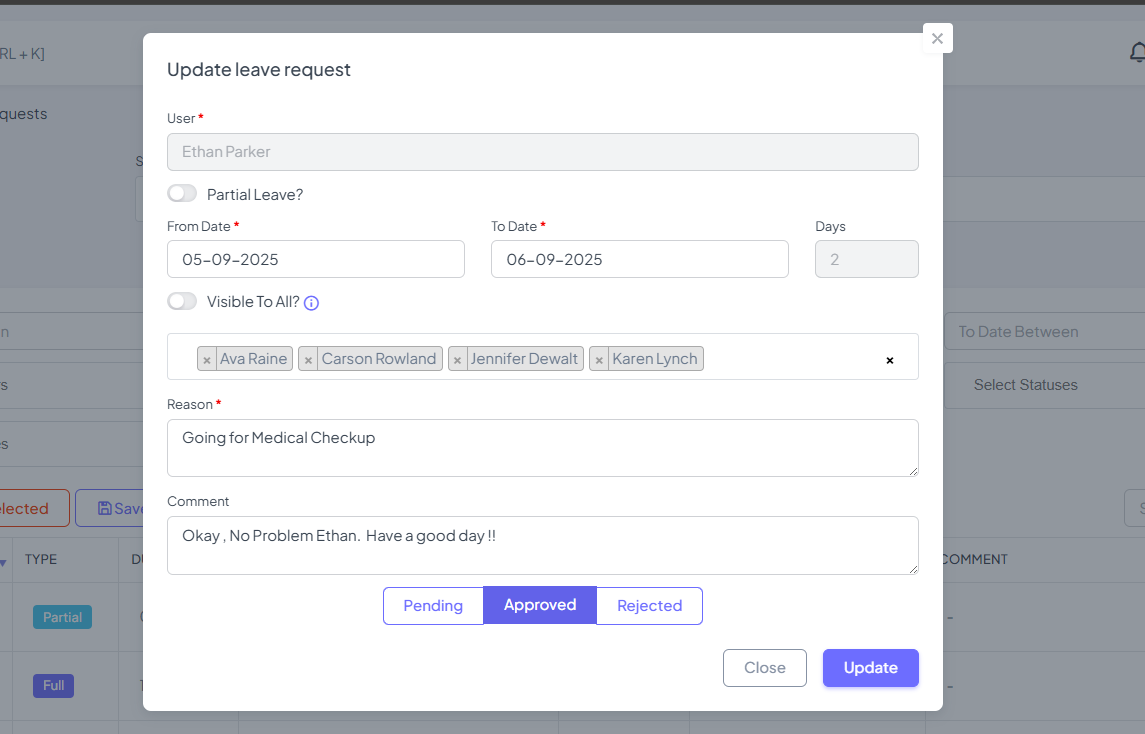
Click on a request to see details (leave type, dates, employee note).
Choose an action:
Approve – The leave will be marked as approved and added to the Leave Calendar.
Reject – The leave will be declined. (It’s best practice to add a comment so the employee knows why.)
Comment – Provide clarification before making a decision if needed.
Once the action is taken:
The employee will be notified instantly.
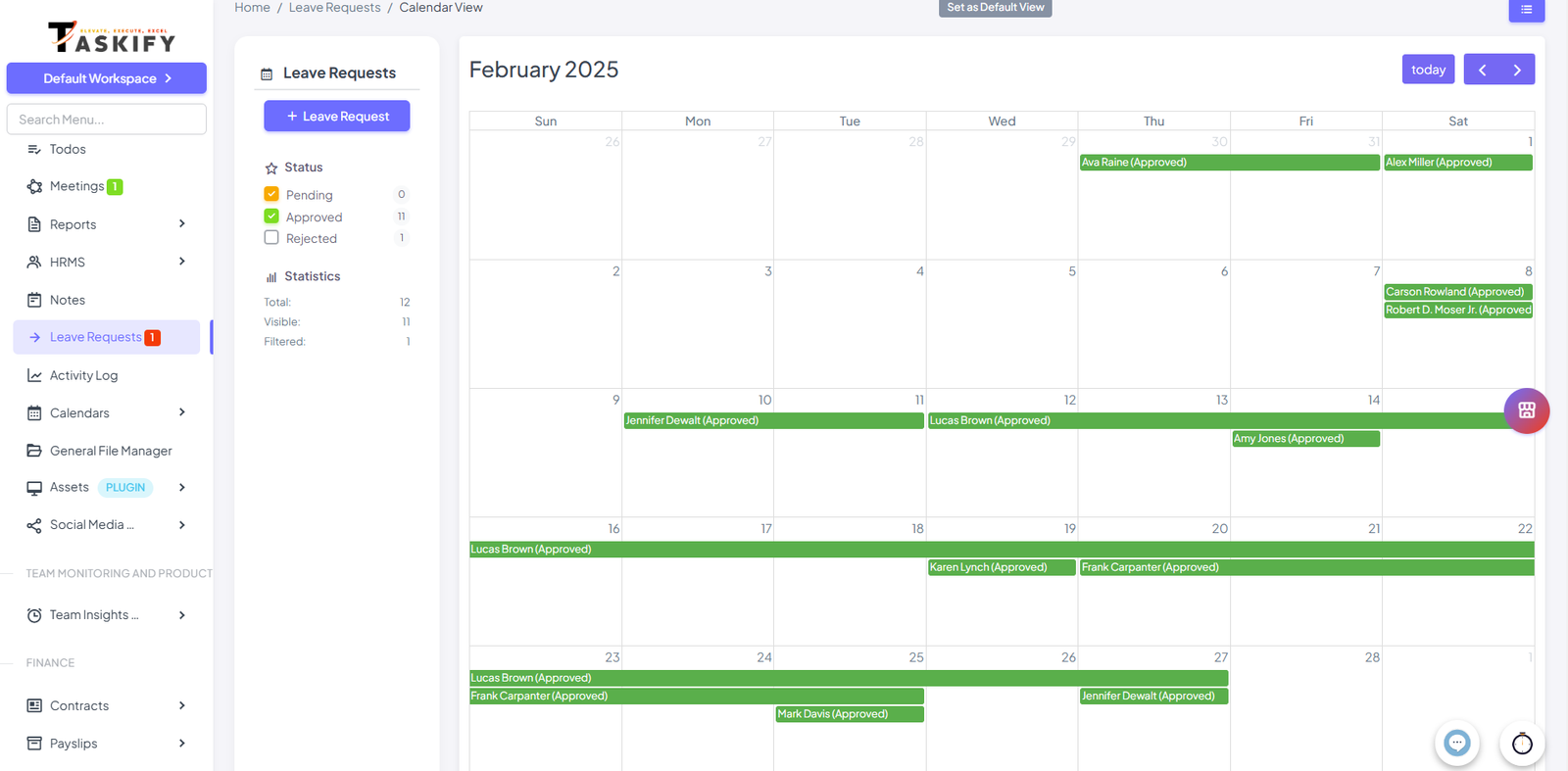
Approved requests appear in the Leave Calendar for visibility.
3. Using the Leave Calendar
The Leave Calendar provides a quick view of all approved leaves:
Helps managers avoid approving overlapping requests.
Gives teams visibility into who will be unavailable on certain days.
Tips for Employees
Always submit your request early to increase chances of approval.
Use Partial Day Leave for short absences.
Add a clear reason in the notes for transparency.
Tips for Approvers
Check the calendar view before approving overlapping leaves.
Provide comments when rejecting requests to maintain clear communication.
Approve or reject requests promptly to avoid uncertainty.
Summary
The Leave Requests feature in Taskify ensures smooth communication between employees and managers. Employees can quickly submit full-day or partial-day leave requests, while approvers can easily review, approve, or reject them. With calendar visibility and notifications, Taskify ensures leave management is transparent, efficient, and stress-free.