
Task Views in Taskify
Taskify provides multiple ways to view and manage tasks, allowing teams to work in the style that suits them best. Whether you prefer a detailed list, a visual Kanban board, a calendar schedule, or grouping tasks by lists, Taskify has a view for every workflow.
1. List View
Description:
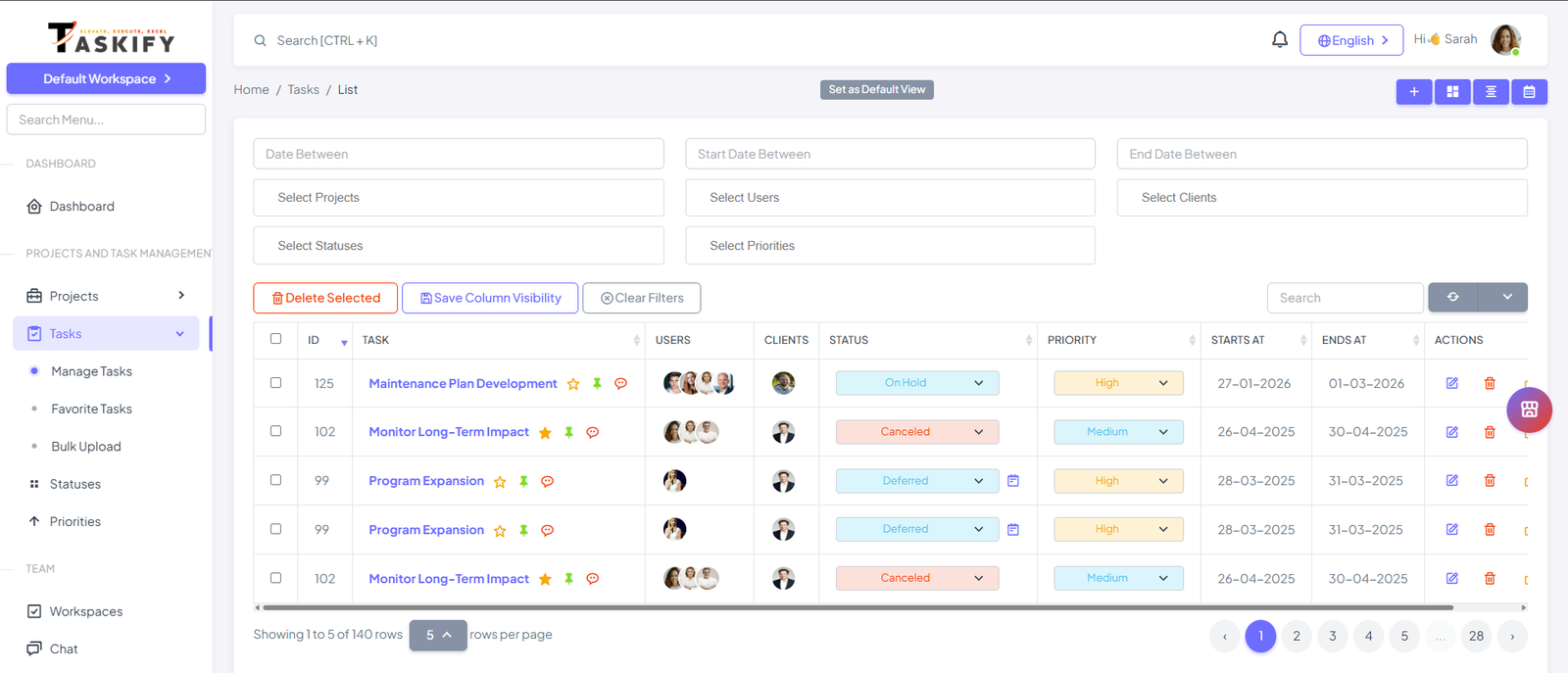
The List View displays all tasks in a detailed table format, showing task names, assigned members, status, priority, due dates, and other relevant details.
How to Use:
Open Tasks.
Click List View.
Sort or filter tasks by status, priority, or due date.
Click a task to edit details or update status.
Benefits:
Provides a comprehensive overview of all tasks.
Easy to sort, filter, and search tasks.
Ideal for managers needing detailed information.
2. Draggable View (Kanban)
Description:
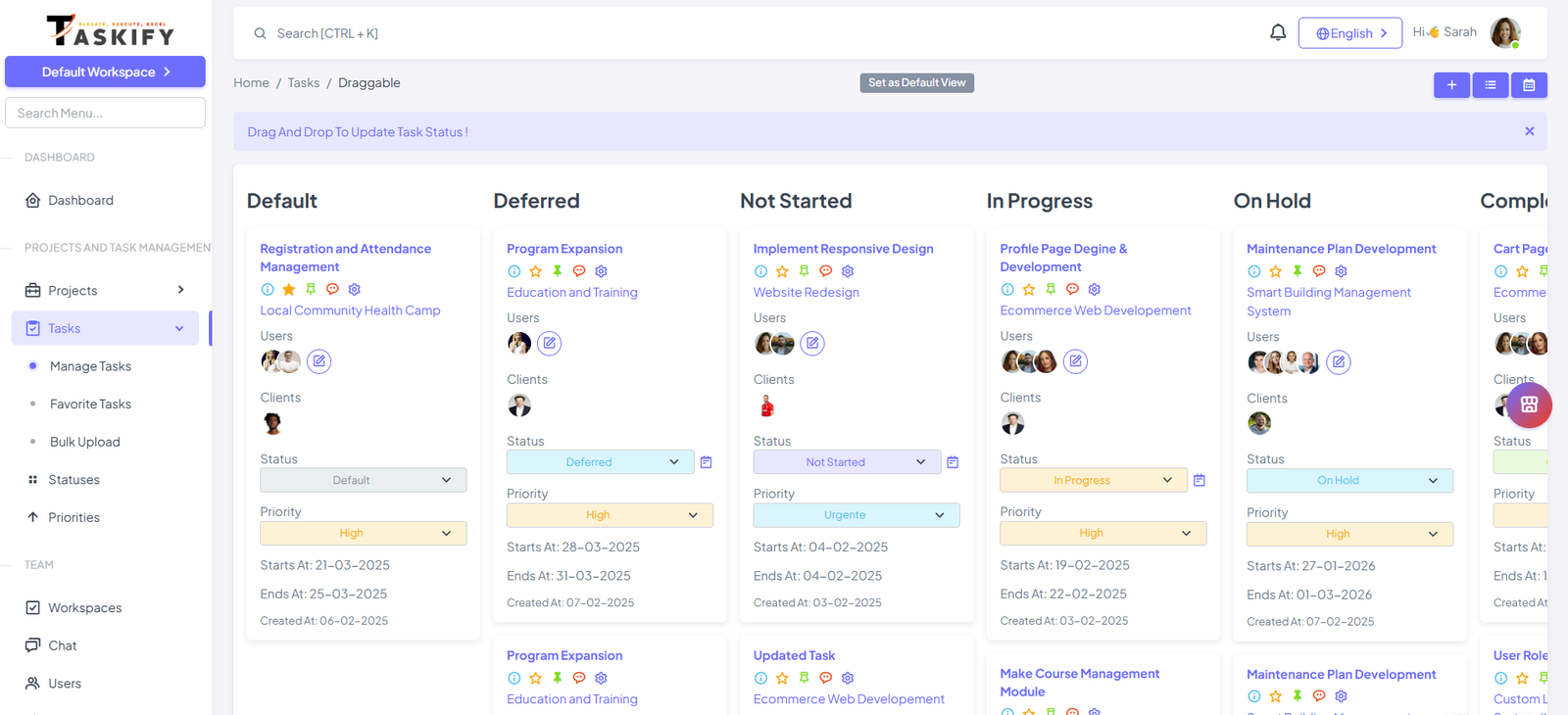
The Draggable View displays tasks as cards in columns based on their status or workflow stage. Tasks can be dragged and dropped to update their status in real-time.
How to Use:
Open Tasks and select Draggable / Kanban View.
Drag task cards between columns such as Open, In Progress, or Completed.
Click a card to add comments, attachments, or update task details.
Benefits:
Visualizes workflow and task progress.
Quickly update status without opening each task.
Helps identify bottlenecks in the workflow.
3. Calendar View
Description:
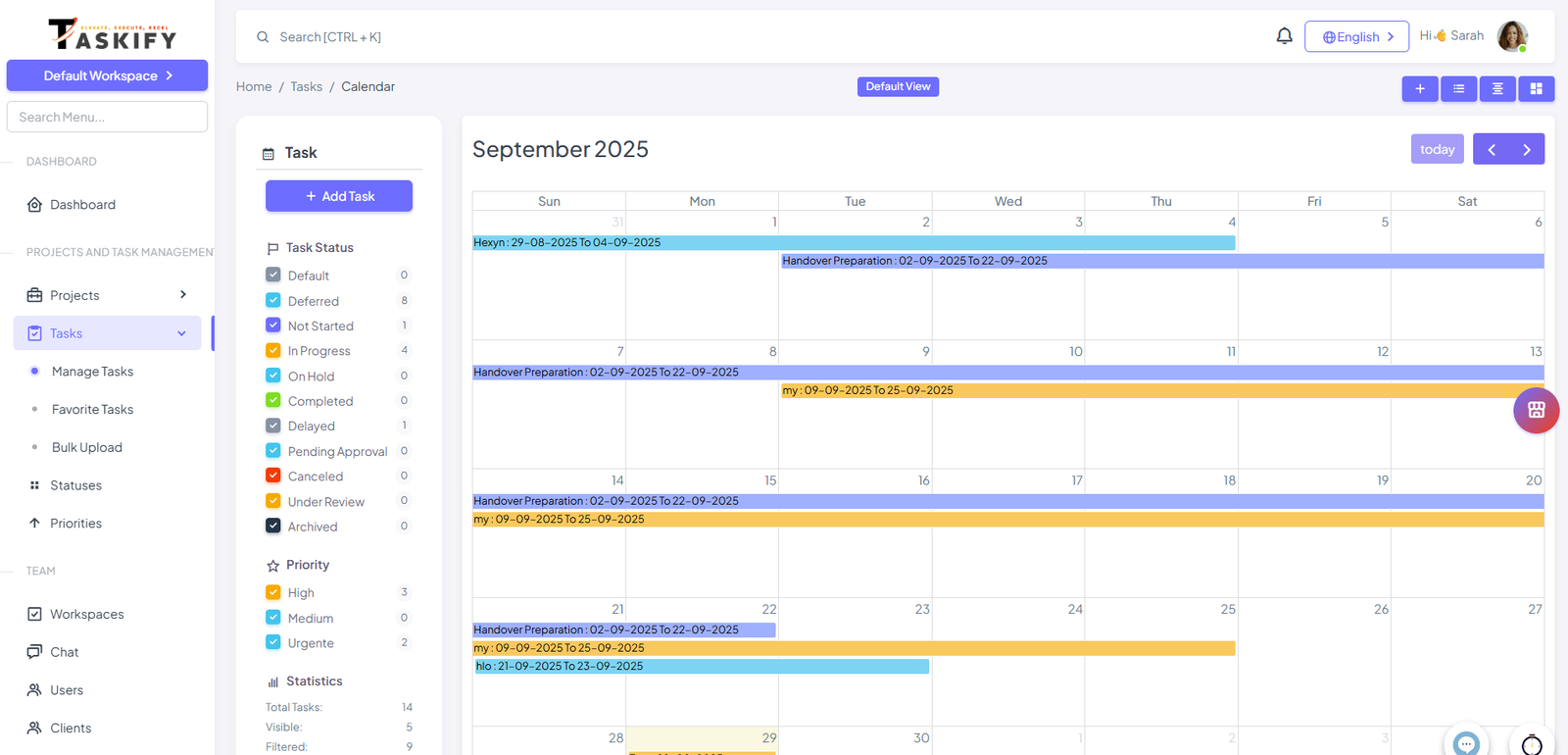
The Calendar View displays tasks according to their due dates. You can view tasks in daily, weekly, or monthly format and adjust deadlines by dragging tasks.
How to Use:
Open Tasks and select Calendar View.
View all tasks on the calendar according to due dates.
Drag and drop tasks to reschedule deadlines.
Benefits:
Helps track deadlines visually.
Identifies overlapping tasks or schedule conflicts.
Great for planning and time management.
4. Group By Task List View
Description:
This view groups tasks by their respective Task Lists, making it easier to organize work by phases, departments, or deliverables.
How to Use:
Open Tasks and select Group By Task List.
Expand or collapse Task Lists to view tasks under each list.
Manage, assign, or update tasks within each list.
Benefits:
Improves organization by grouping related tasks.
Provides a clear structure for large projects.
Helps track progress per Task List.
Best Practices for Using Task Views
Use List View for detailed task management.
Use Kanban/Draggable View for visual workflow tracking.
Use Calendar View to manage deadlines and schedules.
Use Group By Task List View for organized phases or categories.
✅ Summary:
Taskify’s multiple Task Views provide flexibility and clarity, allowing teams to manage work efficiently in the format that suits them best. By switching between views, teams can track progress, manage deadlines, and stay organized, all within the same platform.